Getting Started
Recite helps you track receipts and expenses effortlessly. We prioritize your privacy and data ownership by storing everything directly in YOUR Google Drive.
First-Time Setup
Sign in with Google
Click the Sign In button and choose your Google account.
Grant Drive Permission
Google will ask to access Drive. Click Allow.
You're Ready!
Recite will automatically create and manage Recite/receipts/, Recite/projects/, and Recite/scans-pending/ in your Drive.
Get Started in 3 Steps
Start tracking receipts in under 5 minutes.
Upload
Drag & drop or snap a photo. We support JPG, PNG, and PDF.
Review
AI extracts the details. You verify the data and assign a project.
Done
View analytics instantly or export to CSV tax reporting.
Video Tutorials
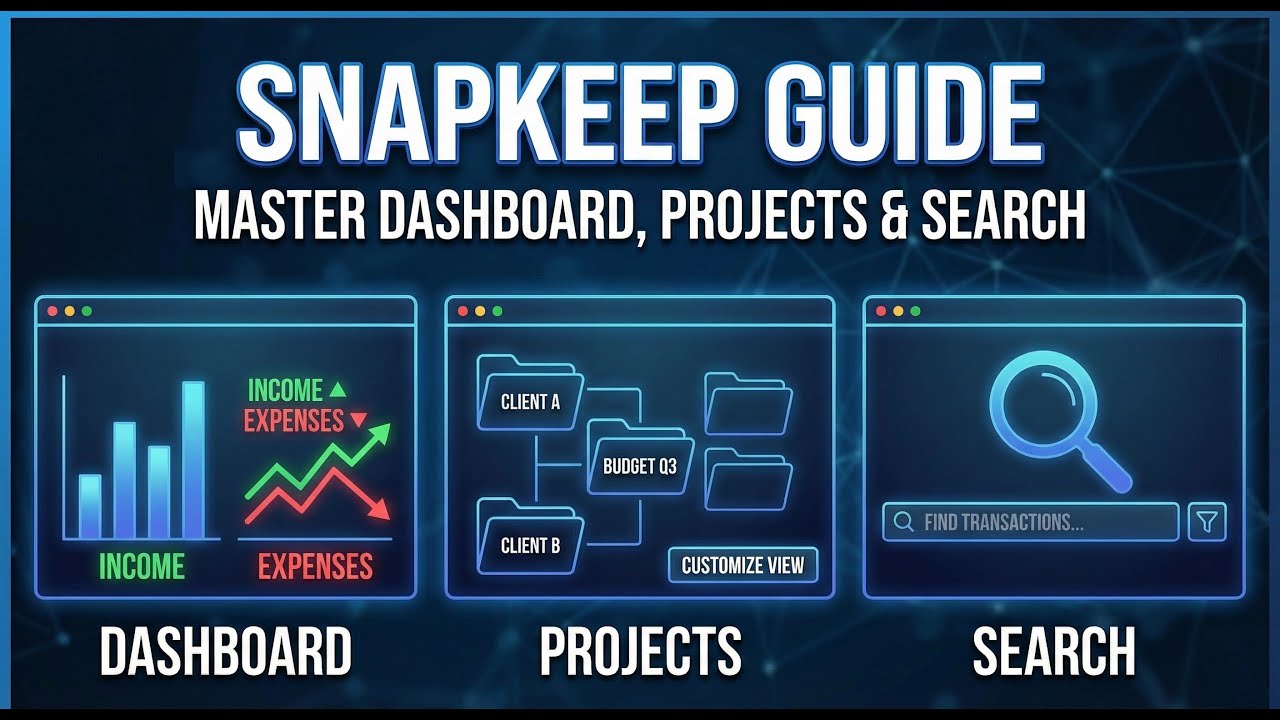
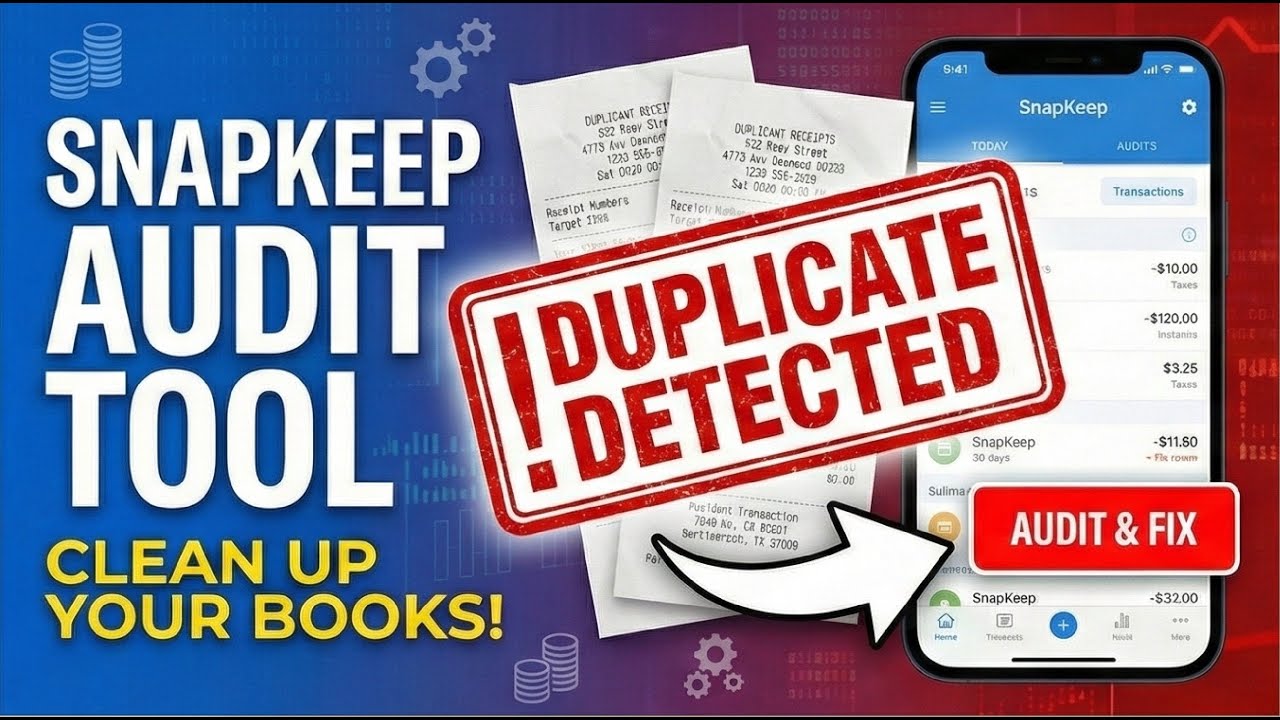
Watch step-by-step video guides to get the most out of Recite. Each tutorial covers a specific feature in detail.

Uploading Data
Supported Files
- Photos (JPG, PNG, WEBP)
- PDF documents
- Max 5MB per file
- Batch upload up to 10 files
How It Works
- Navigate to Import
- Drag files or click "Browse"
- AI processes each file (~10s)
- Check "Completed" list
Pro Tip
You can switch projects directly on the Import page before uploading to automatically assign them.
Manual Entry
Perfect for cash transactions or lost receipts. Go to Review → Add Manual Entry.
- Cash payments
- Venmo/Zelle transfers
- Recurring subscriptions
- Date & Amount
- Vendor Name
- Project Assignment
Uploading Statements
Financial statements from checking, savings, and credit card accounts allow you to reconcile against your uploaded receipts. They can be imported directly from the Import page.
Supported Formats
- CSV Only: Currently, only CSV file uploads are supported for statements.
- Custom Formatting: The import tool will automatically detect headers, or allow you to map columns manually (e.g., Date, Description, Amount).
- Amount Formats: Both single-column (positive/negative amounts) and dual-column (separate debit/credit) formats are supported.
How to Upload
- Navigate to the Import page from the main sidebar.
- Click the Upload Bank Statement button located below your import quota.
- Drag and drop your CSV file or select it from your computer.
- Select an existing bank account or create a new one inline (requires Institution Name and Last 4 Digits).
- Verify the column mapping and review the data preview, then click Import statement.
Reviewing & Editing
Uploaded receipts enter the Review stage as drafts. They do not appear in dashboard totals or exports until they are reviewed.
The Validation Workflow
Initial state. AI has extracted the transaction, but you still need to confirm the data and assign a project.
Edit any fields that need correction, then click Review. If required fields are missing, Recite will stop the review and show what needs attention.
Final state. The transaction is included in dashboard analytics, project totals, and exports.
Group View and Bulk Review
Group View is the default review layout. Drafts are grouped by what action is safe to take next, not just by confidence.
Ready
High-confidence drafts with no blockers. These can be bulk reviewed immediately.
Needs check
Medium-confidence drafts. These are still user data, so a checkbox in the preview is enough to include them.
Low confidence
Low-confidence drafts can still be bulk reviewed, but only after you explicitly type REVIEW LOW in the preview.
Hard blocked
These are not bulk-reviewable. Typical reasons are missing required fields, duplicate suspicion, or an active validation error.
Bulk Actions
From the review page you can:
- Open Review All to preview all current drafts before bulk review
- Review one group at a time from Group View
- Bulk edit project or category for selected drafts
- Delete selected drafts
Important Rules
- Project assignment is mandatory. You cannot finalize a transaction without assigning it to a project.
- The preview shows totals before commit. Review All now shows subtotal, tax, and total sums for all included buckets before you proceed.
- Low confidence is not the same as blocked. Low-confidence drafts can still be included with explicit confirmation, while hard-blocked drafts must be fixed one by one.
Projects
Projects are the core organizational unit in Recite. Group expenses by Client, Event, Year, or Category.
Managing Projects
Create
Go to Projects sidebar → "Add new project"
Assign
Link receipts to projects during upload or review.
Exporting Data
Reports
| Format | Best Use Case |
|---|---|
| Detailed Ledger | Granular backup, Excel / Google Sheets editing |
| Category Summary | Quick expense breakdown by category |
| Monthly Summary | Month-by-month income vs. expenses trend |
| Quarterly Summary | Q1–Q4 summaries for quarterly tax filings |
| Profit & Loss | Tax filing, CPA / accountant review |
Bookkeeping Import
| Format | Best Use Case |
|---|---|
| QuickBooks Online | Direct import into QuickBooks (Banking → File Upload) |
| Xero | Direct import into Xero (Accounting → Bank Accounts → Import) |
| Generic CSV | Wave, Zoho Books, FreshBooks |
Avoid duplicates: If your bank transactions are already imported in QuickBooks or Xero, importing these receipts may create duplicates. Use a dedicated "Receipt Scanner Clearing" account for imports.
Accountant-Ready Exports
Check the "Include Receipt Links" box when exporting. This adds a column with direct links to the receipt images in your Google Drive.
IRS Defense Package
Generate Tax Package (IRS Defense)
Creates a single .zip file you can hand directly to your CPA — no manual file gathering required.
Filing entity (Schedule C / Form 1120 / 1120-S) is shown read-only on the Export page. To change it, go to Settings → Tax Filing Entity.
Tax_Summary.csv
Income + expenses grouped by IRS form lines with net reconciliation
General_Ledger.csv
Every transaction with full metadata and receipt cross-reference
Fixed_Assets.csv
Capital purchases flagged for depreciation (not direct expensing)
Receipts/
All receipt images renamed YYYY-MM-DD_Vendor_Amount_ID.ext
_Missing_Receipts.csv
IRS $75 rule exposure manifest — transactions with no receipt
README.txt
Cover sheet with entity, period, totals, and CPA disclaimer
Step-by-step
- Go to Export and click the IRS Defense Package tab.
- Choose a date scope: use a preset (This Year, Last Year, Q1–Q4, Last 30/90 Days) or pick a custom From / To date. The scope covers all transactions in that range regardless of project.
- Confirm your filing entity is correct (shown below the date picker). Change it in Settings if needed.
- Click Generate Tax Package. The job starts immediately — a progress bar tracks receipt downloads.
- It's safe to close the tab. The job runs in the background on the server. When you come back to the Export page, it reconnects to your in-progress or completed job automatically.
- When complete, click Download ZIP. The link is valid for 5 minutes — download promptly. If it expires, click your latest job again to get a fresh link.
Large libraries take time: Each batch downloads ~15 receipts. For hundreds of receipts the job may take several minutes. Leave the Export page open or return later — the job continues in the background.
Troubleshooting
Download link expired
Links are valid for 5 minutes. Return to the Export page — your completed job will still be listed and you can click it to get a fresh signed URL.
Job shows "failed"
Try generating again. If receipts are stored in Google Drive, ensure Drive is still connected in Settings. If the issue persists, contact support.
_Missing_Receipts.csv is not empty
This is your IRS exposure list — expenses over $75 with no receipt attached. Under IRS rules, receipts are required for business deductions over $75. Attach the missing receipts in the Review page, then re-run the tax package to get a clean file.
Job appears stuck (progress bar not moving)
Large receipt libraries can take a few minutes per batch. If the job has not progressed for more than 5 minutes, try refreshing the page — this triggers automatic stall recovery and re-queues the job.
Reconciliation
The Reconciliation feature allows you to match imported receipts and transactions to your actual bank feed, ensuring that your records perfectly mirror your financial reality.
What it does
The Reconciliation Hub organizes your financial matching into four distinct tabs to streamline your workflow:
- Bank Feed
A consolidated view of all your bank transactions across statements. Use this as your command center to see unmatched bank items and their statuses.
- Matching Workspace
The primary interface where you manually match receipts/expenses to bank transactions. You can link one receipt to one transaction, or split them appropriately.
- Linked Transactions
Review previously created reconciliation links. This tab lists all successful matches and allows you to unlink them if a mistake was made.
- Statements
Manage your imported statements. You can upload new statements, expand transaction details, or jump straight into matching for a specific statement.
- Auto-match Wizard (Sparkles Button)
An automated tool that attempts to instantly pair receipts to bank transactions based on matching amounts, dates, and names, saving you significant manual work.
How to use it
1. Import Statements:
Start by navigating to the Statements tab and clicking "Upload statement" to import your financial CSV file.
2. Auto-matching:
Click the Auto-match button (with the sparkles icon) located at the top right of the tabs. This wizard will suggest high-confidence matches which you can review and accept in bulk.
3. Manual Matching:
Go to the Matching Workspace. Select an unmatched bank transaction on one side and its corresponding receipt on the other, then confirm the link.
4. Reviewing Links:
Periodically check the Linked Transactions tab to ensure accuracy. Use the unlink function if you need to correct any matches.
Best Practices
What it can do
- • Handle complex one-to-many matches
- • Identify exact, fuzzy, and split matches automatically
- • Provide audit-ready reporting through Export
- • Preserve partial matching states
What you should not do
- • Do not attempt to modify raw bank statement text directly; instead, adjust the linked receipts
- • Do not blindly accept all auto-matches without reviewing the fuzzy ones
- • Do not delete bank statements if they contain active links without unlinking them first
Audit & Tax Readiness
The Transaction Audit feature helps ensure that your bookkeeping is accurate, complete, and fully prepared for tax filing. It screens your financial data across four distinct audit checks:
1. Tax Readiness
Specifically designed to catch documentation gaps and IRS non-compliance risks. This scan evaluates transactions against three core rules:
- Missing Receipts over $75
IRS guidelines require receipt documentation for any business expense of $75 or more. Transactions meeting this threshold without an attached receipt are flagged. You can quickly upload or match a receipt, or dismiss the warning with a justification (e.g., if a digital invoice is unavailable).
- Missing Meal Details
Business meals require documented business purposes and attendee lists to support deductions. If a transaction under a food/dining category lacks this information, you can enter the business discussion details and list of attendees directly within the audit queue.
- Possible Capital Assets
Large purchases (typically $2,500+) may need to be capitalized as fixed assets and depreciated over time rather than expensed immediately. The scanner flags these transactions, prompting you to classify them as a "Fixed Asset" or keep them as an "Operating Expense" with a clear explanation.
2. Other Audit Controls
Data Integrity
Finds transactions missing essential fields like vendor, category, or amount. Correcting these ensures your ledger has no blank fields before exporting. Note that assigning a project is optional.
Duplicate Transactions
Scans for entries sharing duplicate values (e.g., matching dates, amounts, vendors, or categories). Allows you to batch delete duplicate rows to prevent overstating your expenses.
Duplicate Images
Detects different transactions pointing to the exact same receipt image file in Google Drive or Supabase storage. Note that a connected Google Drive integration is required to run the image duplicate audit.
How to Run an Audit Check
Navigate to the Audit page. Use the filter controls at the top to check all open warnings across all periods, or filter by a specific tax year and month. Click Run Tax Check to refresh the scan and build your resolution queue.
AI Agent Integration
Recite MCP Server
AI Agent FriendlyConnect your AI agents directly to Recite using the Model Context Protocol (MCP). This allows Claude Code, OpenClaw, and other MCP-compatible clients to process receipts, manage your ledger, and access your local financial memory with full context.
Quick Install
Recommended (using uv)
uvx recite-mcpAlternative (pipx)
pipx install recite-mcpAlternative (pip)
python -m pip install recite-mcpEnvironment Variables
RECITE_API_KEY (Required)
$env:RECITE_API_KEY="re_live_xxx" (Windows)export RECITE_API_KEY="re_live_xxx" (Mac/Linux)RECITE_HOME (Optional)
Custom directory for ledger and memory files.
export RECITE_HOME="~/.config/recite"Client Configuration
Claude Desktop / Desktop Client
{
  "mcpServers": {
    "recite": {
      "command": "uvx", // or "recite-mcp" if pip installed
      "args": ["recite-mcp"],
      "env": {
        "RECITE_API_KEY": "re_live_xxx"
      }
    }
  }
}
* If you installed via pipx, replace "command": "uvx" with "command": "recite-mcp" and remove "recite-mcp" from args.
Available Tools & Resources
Core Tools
validate_setup()Checks API key and local paths are ready.process_receipt(file_path, ...)Analyze a single receipt image via Vision AI.process_receipts_batch(dir, ...)Process an entire folder of receipts.summarize_ledger(group_by)Aggregates ledger totals by vendor/category.
Ledger & Memory
recite://ledgerResource Pattern: Direct read-only access to entries.update_memory(instruction)Save long-term categorization rules.add_ledger_correction(...)Append audit-safe correction entries.- And 4+ more tools...
First-Run Checklist
Config
Add API Key to your client config.
Validate
Call validate_setup() tool.
Dry-Run
Run process_receipt with dry_run=True.
Success
Process your first real receipt!
Explore Features
Batch processing, local CSV ledger append with audit-safe corrections, and memory instruction store for categorization rules.
View MCP Repo on GitHubCustom Agent Skill
The Recite Agent Skill is a custom implementation for agents that allows for deep integration with local workflows, specialized file renaming, and custom long-term memory management.
Receipt Scanning
Extracts 16+ data points — date, vendor, total, tax, tip, and confidence scores.
File Renaming
Automatically renames files to [YYYY-MM-DD]_[Vendor].ext archives.
CSV Ledger
Appends every scan to a local CSV bookkeeping ledger. Schema-aware and audit-safe.
Setup
Get your API key
Sign up at recite.rivra.dev. Your key is standard across all integrations.
Clone the repository
github.com/rivradev/recite-agent-skillConfigure Environment
export RECITE_API_KEY=re_live_your_keyLocal-first privacy: All scanned data is written to your machine. Only the raw image is processed by the API.
Dashboard
Your financial cockpit. Filters at the top control all cards and charts instantly.
Frequently Asked Questions
Is my data safe?
Yes. Files are stored in your own Google Drive. We only store metadata (amounts, dates) in our secure database to power the dashboard.
What happens if I cancel?
You keep all your files. They are in your Google Drive, so you never lose access to your receipts.
How do I manage or disconnect Google Drive?
Go to Settings -> Privacy Settings. When Drive is connected, Recite shows the folders it manages and you can disconnect access at any time. Disconnecting removes Recite's stored Drive tokens, but files already in your Google Drive stay there.
Can I invite my accountant?
Currently, you should export data as CSV or share the specific Google Drive folder with them directly.
Why did a receipt fail to scan?
Ensure the image is clear, well-lit, and less than 5MB. Blurry images or complex handwritten notes may fail.
Why is my IRS Defense Package taking a long time?
Each batch downloads ~15 receipts from storage (Google Drive or Supabase). For 200+ receipts, the job can take several minutes. The job runs in the background — you can close the tab and come back. Refresh the Export page to reconnect and check progress.
Can I generate the IRS Defense Package via the API?
Yes. Use POST /api/v1/export/tax-package with the export:create scope. The API returns a job_id immediately (HTTP 202). Poll GET /api/v1/export/tax-package/{job_id} until status is 'completed', then download the ZIP from the download_url field. The link is valid for 5 minutes.